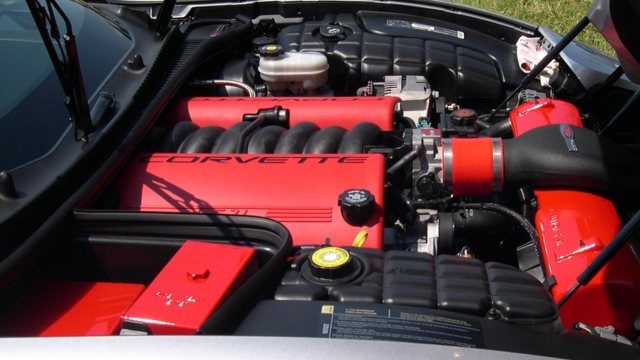
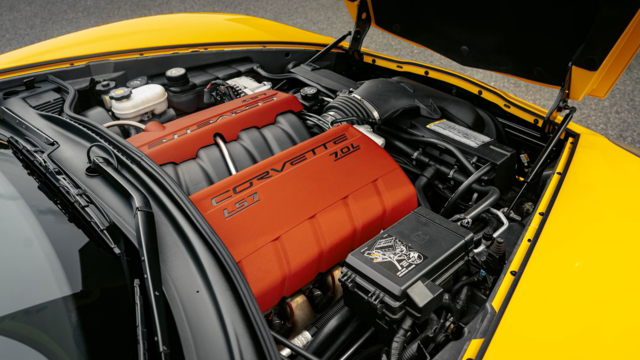
pics?


Joined: Oct 2007
Posts: 174
Likes: 20

Here's some brief instructions I created a while ago. Still valid and applies here.
If you wish to attach an image in a post by uploading to the LS1Tech vBulletin database*:
If you already have your image hosted online:
If you wish to attach an image in a post by uploading to the LS1Tech vBulletin database*:
- When you create a thread or are posting a reply to an existing thread, simply click on the Manage Attachments button that is located under the text box where you normally type your message. See Figure 1 below:

- Once you've clicked on the Manage Attachments button, you will see a new Manage Attachments window. Click on the Browse button to locate the file on your computer. When you have found it, click on the OK.
- Click on the Upload button

- Once you've uploaded your image, you should see the file listed under the "Current Attachments" heading. You can then close that 2nd browser window. The file names should appear under the "Attach Files" section. When you're finished with your message, click on the "Submit Reply" button. The image will be uploaded to the LS1Tech vBulletin database, along with your regular message. See figure below:

If you already have your image hosted online:
- Copy the URL of your image that you wish to post. Simply locate your image online, and then right-click on the image and select the "Properties" option, if using Internet Explorer. The URL is listed under the "Address (URL)" section. Highlight the address shown, then right-click and select "copy". The URL will now be copied to your Window's clipboard for later use.
- When you create a thread or are posting a reply to an existing thread, click on the image icon (see Figure below), which is located just above where you normally type your reply message. When the prompt appears, delete the existing text http:// in the field, then right-click and and select the "Paste" option. The URL to your image should now be in that field.
Note: Make sure to only have 1 http:// in your URL.

- Click on the "OK" button.
You'll see the image's URL is then placed inside the [IMG][/IMG]tags.

No. For that, click on "Garage" in the link bar up at the top, then "Add a new vehicle" up at the top of the next page. Should be able to take it from there. If not, ask again.
Joined: Oct 2007
Posts: 174
Likes: 20
1) Go to the Garage: https://ls1tech.com/forums/garage/
2) Click on the Add a new vehicle link (near upper right corner)
3) Fill out the necessary information about the vehicle for Steps 1-3
4 A) Upload a photo album cover. The picture must be located on your computer. First, click on the Browse button
4 B) A browser window will open with the contents of your hard drive(s) of your computer. Navigate to find the photo, select the file, then click on OK
5) Click on Save changes
To upload photos to your Garage after completing the above steps:
6) While viewing your Garage (https://ls1tech.com/forums/index.php...&do=showportal) click on the photo album cover:

7) Click on the Upload Pictures link above or below the photo album picture:

8) Click on the Browse buttons to display the contents of your hard drive(s) of your computer, in order to select and find the photos you wish to upload.
9) Click on the Upload Pictures link:

10) You have the option of switching the photo album cover with any of the 3 images you previously uploaded. If you do not wish to make that change, simply click on Save Changes. If you do wish to replace the photo album cover with any of the images you previously uploaded, simply click on the "This is the album cover" radio button under the image you wish to use as the photo album and then select the Save Changes
2) Click on the Add a new vehicle link (near upper right corner)
3) Fill out the necessary information about the vehicle for Steps 1-3
4 A) Upload a photo album cover. The picture must be located on your computer. First, click on the Browse button
4 B) A browser window will open with the contents of your hard drive(s) of your computer. Navigate to find the photo, select the file, then click on OK
5) Click on Save changes
To upload photos to your Garage after completing the above steps:
6) While viewing your Garage (https://ls1tech.com/forums/index.php...&do=showportal) click on the photo album cover:
7) Click on the Upload Pictures link above or below the photo album picture:
8) Click on the Browse buttons to display the contents of your hard drive(s) of your computer, in order to select and find the photos you wish to upload.
9) Click on the Upload Pictures link:
10) You have the option of switching the photo album cover with any of the 3 images you previously uploaded. If you do not wish to make that change, simply click on Save Changes. If you do wish to replace the photo album cover with any of the images you previously uploaded, simply click on the "This is the album cover" radio button under the image you wish to use as the photo album and then select the Save Changes